
How to get WordPress support and keep your website secure
Note: This article is the English translation of a tutorial originally published on the WPinProgress blog in Italian.
WordPress is the world’s most widely used CMS for building websites, thanks to its ease of use and enormous flexibility.
However, you may sometimes encounter errors, malfunctions, or security issues that require prompt action to avoid service interruptions or data loss.
The first thing you might do is look online for an official WordPress support service.
However, due to the open source nature of the platform, this is not possible: there is no phone number or direct contact you can call when you encounter a problem.
At this point, you have several options:
- Look for a free support service
- Contact a WordPress expert who offers professional paid support
Get Free Support from WordPress Forums and Communities
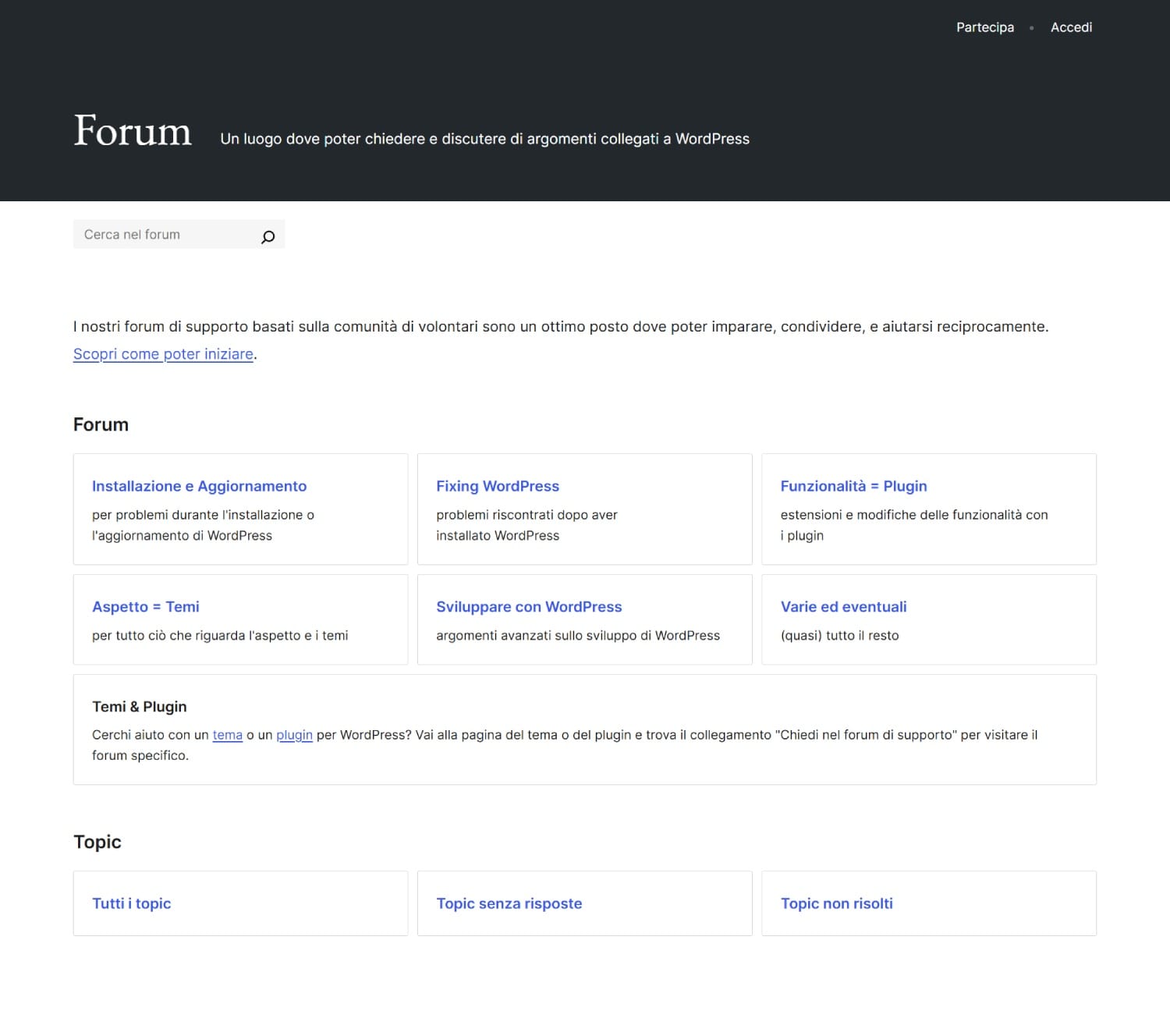
One option is to use the official WordPress support forums, where thousands of users and developers share solutions and useful advice every day.
In the forum, you can access different sections depending on the type of problem you are experiencing:
- WordPress installation
- Issues with themes or plugins
- Security or performance problems
Simply describe the problem clearly and provide information about the WordPress version you are using, the installed theme, and the active plugins.
You will often find other users who have already experienced the same problem and may be able to provide an immediate solution.
Another possible solution is to join one of the Facebook groups dedicated to WordPress, where you may be able to get help quickly.
However, keep in mind that joining a group solely to ask for support and then disappearing may not be well received by other members.
Try to actively participate in discussions, sharing your experience and contributing whenever you can. This way, you are more likely to receive useful answers and become part of a genuinely helpful community.
Get Support Through Online Documentation
If the problem is related to a specific theme or plugin, you can try contacting the developer directly or consult the official documentation.
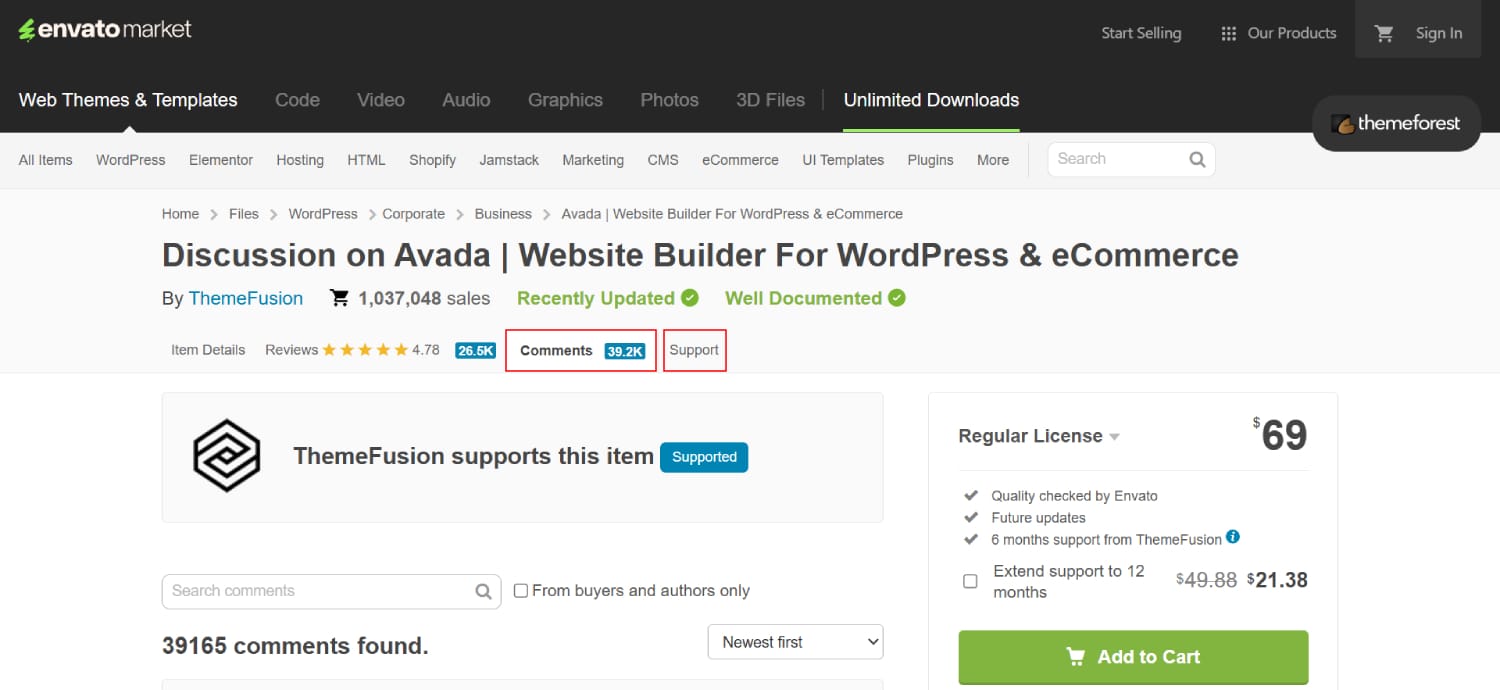
For example, if you purchased a theme on ThemeForest, check the product comments or the dedicated support forum: it is very likely that other users have already reported the same error and that the developer has already provided an answer.
Alternatively, you can visit the WordPress Codex or the newer documentation available at developer.wordpress.org, where you can find technical guides and solutions to common problems.
Get Support from a WordPress Expert
If you cannot solve the problem through free support channels, you can contact a WordPress professional.
Searching Google for “WordPress support” will bring up several experts and agencies offering technical support, maintenance, and customized services.
I have been working with WordPress since 2012 through my Italian blog, WPinProgress, where I write tutorials and develop custom themes and plugins.
Thanks to the experience I have gained over the years, I can help you quickly resolve technical or compatibility issues of all kinds.
For more information, visit the page dedicated to WordPress Support.
Useful Tips for Keeping Your WordPress Website Secure
Many WordPress problems can be prevented before they occur by following some good security and maintenance practices.
Here are some useful tips to help you avoid having to rely on technical support too often.
Make Regular Backups
One of the most important things you can do is perform regular backups of your website, so that you can restore it if something goes wrong.
Even if your hosting provider offers automatic backups, they may not always be easily accessible or performed frequently enough, depending on the hosting plan you have chosen.
For this reason, I recommend creating a separate backup that you can store either in the cloud or on an external storage device.
There are two ways to do this:
- Install a free or premium backup plugin
- Perform a manual backup using FTP and phpMyAdmin
How to Back Up Your Website Using a Plugin
There are several free plugins available on WordPress.org that allow you to easily back up your website, with the option to save a copy to cloud services such as Google Drive, Dropbox, or Amazon S3.
Some of the most widely used options include:
- UpdraftPlus, one of the most popular plugins for automatic and scheduled backups.
- All-in-One WP Migration, which is also useful for migrating a website to a new domain or hosting provider.
- BlogVault, which offers incremental backups, saving only modified files and content to reduce backup time and storage requirements.
These tools greatly simplify backup management and allow you to restore your website with just a few clicks, even in the event of website problems or following a hacking attack.
How to Back Up Your Website Manually
- First, retrieve the FTP credentials provided by your hosting provider. If you use Aruba, these are the same credentials used to access the control panel. Otherwise, you can retrieve them by checking the emails you received after purchasing your hosting plan. If necessary, you can also generate new credentials from your hosting control panel.
- Download and install FileZilla or an FTP client of your choice.
- Download the public_html folder. I recommend doing this in several stages:
- first download the wp-admin and wp-includes folders
- then download the wp-content folder. If the website contains a large number of media files, it is preferable to download the wp-uploads folder separately
- Access phpMyAdmin to export the database:
If you use Aruba, you can access it through mysql.aruba.it, using the credentials received by email or the database details found in the wp-config.php configuration file. - Export all tables by clicking Export → Go.
- Save everything in a folder named, for example: backup_sitename_26102025
Keep WordPress, Plugins, and Themes Updated
Keeping WordPress, your plugins, and your installed theme up to date is essential for your website’s security.
Updates can fix bugs and known vulnerabilities that hackers may exploit to attack or compromise your website.
- Before updating your website, always create a backup by following the steps described above.
- Install updates for each plugin and the installed theme individually from the WordPress administration area.
- If you have a premium theme or plugin, download the latest version from your account (for example, on ThemeForest) and reinstall the files, overwriting the previous versions.
If your hosting provider supports it, I recommend using the staging feature to create a temporary copy of your website where you can test updates without affecting the live site.
Use Strong Passwords
To prevent unauthorized access, use long and complex passwords, different for every service, and avoid using names or common words.
A strong password should include uppercase and lowercase letters, numbers, and symbols.
The shorter or more predictable a password is, the easier it will be to compromise through a brute-force attack.
To test the strength of your passwords, you can use a website such as passwordmonster.com.
If the password you have created turns out to be too simple and easy to crack, I recommend generating a complex one using one of the many online password generators, such as lastpass.com.
Use a Username Other Than admin
Many automated attacks attempt to access websites using the default admin username.
To reduce the risk, create a new administrator account with a different username and delete the default one.
Use an Administrator Email Address Different from info@yoursite.com
For greater security, use a dedicated email address that is different from the one associated with your website’s domain, such as info@yoursite.com.
This reduces the chances of hackers guessing your credentials during login attempts.
Use a Security Plugin
Another important recommendation is to install a WordPress security plugin such as Wordfence.
These tools can help keep your website secure in several ways, providing an additional layer of protection against attacks and unauthorized access.
Here are some of the main features that make Wordfence particularly useful:
- File scanning: performs an in-depth scan of your entire website, comparing core, theme, and plugin files with the original versions available from WordPress.org.
This makes it possible to detect suspicious files, unauthorized modifications, or potentially malicious content. - Login monitoring: allows you to track login attempts and can automatically block suspicious IP addresses or prevent access from users who repeatedly enter incorrect credentials.
You can also receive email notifications whenever a user with an administrator role logs in. - Two-factor authentication (2FA): every login to your website can be confirmed using a temporary verification code.
To generate these codes, you can use a free app such as Google Authenticator, following the instructions provided by the app to connect it to Wordfence.
Conclusion
Getting WordPress support is not only useful for fixing technical problems: qualified technical support can also help identify vulnerabilities, optimize configurations, and prevent future issues.
By following the advice in this guide regarding backups, updates, secure passwords, and good security practices, you can help keep your website stable and protected.
If you need technical support for your WordPress website, learn more about our dedicated WordPress support service and find out how we can help you solve technical issues and keep your website running smoothly.